

Catalog Upload via REST API
This document explains how to upload a catalog CSV file using the WebEngage REST API.
Before proceeding, ensure that:
- A catalog is already created in your WebEngage dashboard.
- You have access to the required credentials such as License Code and Bearer Token.
- Your CSV file is prepared according to the catalog schema.
If a catalog is not yet created, please create one from the Catalogs section in the dashboard before attempting the upload.
cURL Example
Use the following cURL command to upload your catalog CSV file:
curl --location --globoff '{{baseUrl}}/api/v1/accounts/{{licenseCode}}/catalog/{{catalogSlug}}/upload' \
--header 'Accept: application/json' \
--header 'Authorization: Bearer {{accessToken}}' \
--form 'file=@"/path/to/file.csv"'
Placeholder Definitions
Replace the following placeholders in the cURL command:
| Placeholder | Description |
|---|---|
| {{baseUrl}} | Your dashboard base URL (see Step 1) |
| {{licenseCode}} | Your WebEngage license code |
| {{catalogSlug}} | The catalog slug (see Step 2) |
| {{accessToken}} | Your Bearer token (see Step 3) |
| /path/to/file.csv | Full system path to your CSV file |
Step 1: Identify Your Base URL
Your base URL is the main dashboard domain shown in your browser.
Example
If your browser URL is:
https://dashboard.in.webengage.com/accounts/in~ad121d3c/users/overview
Your base URL is:
https://dashboard.in.webengage.com
Use this value in place of {{baseUrl}}.
Step 2: Get the Catalog Slug
- Log in to your WebEngage Dashboard.
- Navigate to Catalogs from the left navigation panel.
- Open the catalog where you want to upload data.
- On the Items page, check the top-left section.
- The value starting with
catalog_is your catalog slug.
Example
catalog_4
Use this value in place of {{catalogSlug}}.

Step 3: Get the Bearer Token
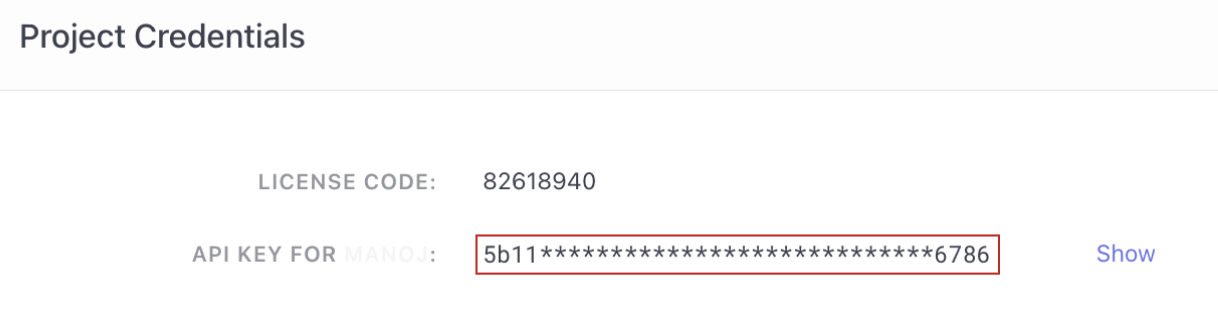
- Navigate to Data Platform → Integrations.
- Scroll to the bottom of the page.
- Under the REST APIs section, click View.
- Copy the displayed Bearer token.
Replace {{accessToken}} in the cURL command with this token.
Success Response
If the upload request is successful, the API returns a JSON response similar to:
{
  "response": {
    "data": {},
    "message": "Catalog file has been uploaded successfully and is now being processed.",
    "status": "success"
  }
}
After a successful upload, the file will be processed asynchronously. You can monitor its status from the Catalog section in the dashboard.
Rate Limiting
To prevent abuse and ensure fair usage, it is recommended to limit catalog update API call across catalog to 1 per hour.
Errors
List of API error status codes.
Please feel free to drop in a few lines at [email protected] or get in touch with your Onboarding Manager if you have any further queries. We're always just an email away!
Updated 7 months ago