

Smart TV Integration
The WebEngage iOS SDK does not support Apple TV (tvOS).WebEngage SDK features work only on iOS mobile applications. Apple TV applications cannot use them.
Overview
You can integrate the WebEngage Android SDK with Android TV, Google TV, and Fire TV. Use the same SDK implementation that you use for standard Android mobile applications. The SDK supports core features such as Analytics, In-App Messaging, Inline Campaigns, Notification Inbox, and User Profile Tracking across TV environments.
However, most TV operating systems do not reliably show notifications through the native system UI when you use standard Android notification APIs, such as NotificationManager.notify().
Prerequisites
-
Android TV Development: Run your application on Android TV OS and complete the base WebEngage Android SDK integration.
-
Platform Awareness: Identify your target TV platform before configuring Push Notifications:
- Android TV and Google TV support Firebase Cloud Messaging (FCM).
- Fire TV devices run FireOS, Amazon’s Android-based operating system built on AOSP.
- FireOS does not include Google Play Services, so Fire TV devices cannot generate FCM Tokens.
Feature Compatibility Matrix
| Platform Feature | Android TV | Google TV | Fire TV |
|---|---|---|---|
| SDK Integration | Supported | Supported | Supported |
| Event Tracking | Supported | Supported | Supported |
| User Profile Tracking | Supported | Supported | Supported |
| In-App Messaging | Supported | Supported | Supported |
| Push Notifications | Custom rendering required¹ | Custom rendering required¹ | No FCM support² |
| Notification Inbox | Supported | Supported | Supported |
| Inline Content | Supported | Supported | Supported |
¹ Requires a custom floating notification implementation.
² FireOS does not include Google Play Services, so standard FCM-based Push Notifications do not work.
SDK Integration
The WebEngage Android SDK works with Android TV, Google TV, and Fire TV because these platforms use the standard Android framework.
Use the same SDK integration flow that you use for Android mobile applications.
Complete SDK installation and initialization with the official Android SDK Getting Started Guide
Complete the standard Android SDK integration before starting the TV-specific implementation steps.
Features
After completing the base SDK integration, configure the WebEngage features required for your TV application.
-
Track Users — Identify users and maintain profiles across TV and mobile platforms.
-
Track Events — Record user actions such as "Video Started" or "Button Pressed" to analyze behavior and trigger engagement campaigns.
-
In-App Messaging — Display overlays, surveys, or custom HTML content.
Configure In-App Messaging campaigns inLandscapemode for TV platforms to avoid rendering issues. -
App Inline Content — Embed targeted content directly into your application UI.
-
Notification Inbox — Provide a dedicated area where users can view and manage message history.
-
Callbacks — Implement SDK listeners to run custom logic when WebEngage processes events or notifications.
Push Notifications
TV Push Notification Limitations
- Android TV launchers do not reliably display standard Android Push Notifications.
- Implement a custom TV notification experience using the steps below.
- The WebEngage SDK currently fires only Push Received and Push Impression callbacks on TV platforms.
- Since the WebEngage SDK does not render Push Notifications on TV platforms, your application handles push click and dismiss actions directly. As a result, the SDK does not trigger Push Click and Push Dismiss events or callbacks.
Android TV and Google TV receive Firebase Cloud Messaging (FCM) payloads. However, most TV launchers do not reliably render notifications through the standard Android notification tray UI.
Follow the standard Android Push Notifications integration Guide for complete FCM setup, token handling, and Firebase configuration:
TV-Specific Push Rendering
Push Sent
    ↓
FCM delivers payload
    ↓
FirebaseMessagingService receives message
    ↓
WebEngage processes payload
    ↓
TV app displays custom notification UI
Complete all steps from the Android Push Notifications Guide before implementing TV-specific notification rendering.
On TV platforms, your application must display its own notification UI.
Choose one of the following approaches:
- Floating Notification — display notifications above other apps using Overlay Permission
- Custom In-App Notification UI — display notifications inside your app
Toastfallback — display short system messages
These approaches help your application display Push Notifications consistently across TV manufacturers such as Sony, TCL, and Hisense.
Overlay Permission (Optional)
Overlay Permission lets your app display windows above other apps.You need this permission only if you want notifications to appear outside your application UI.
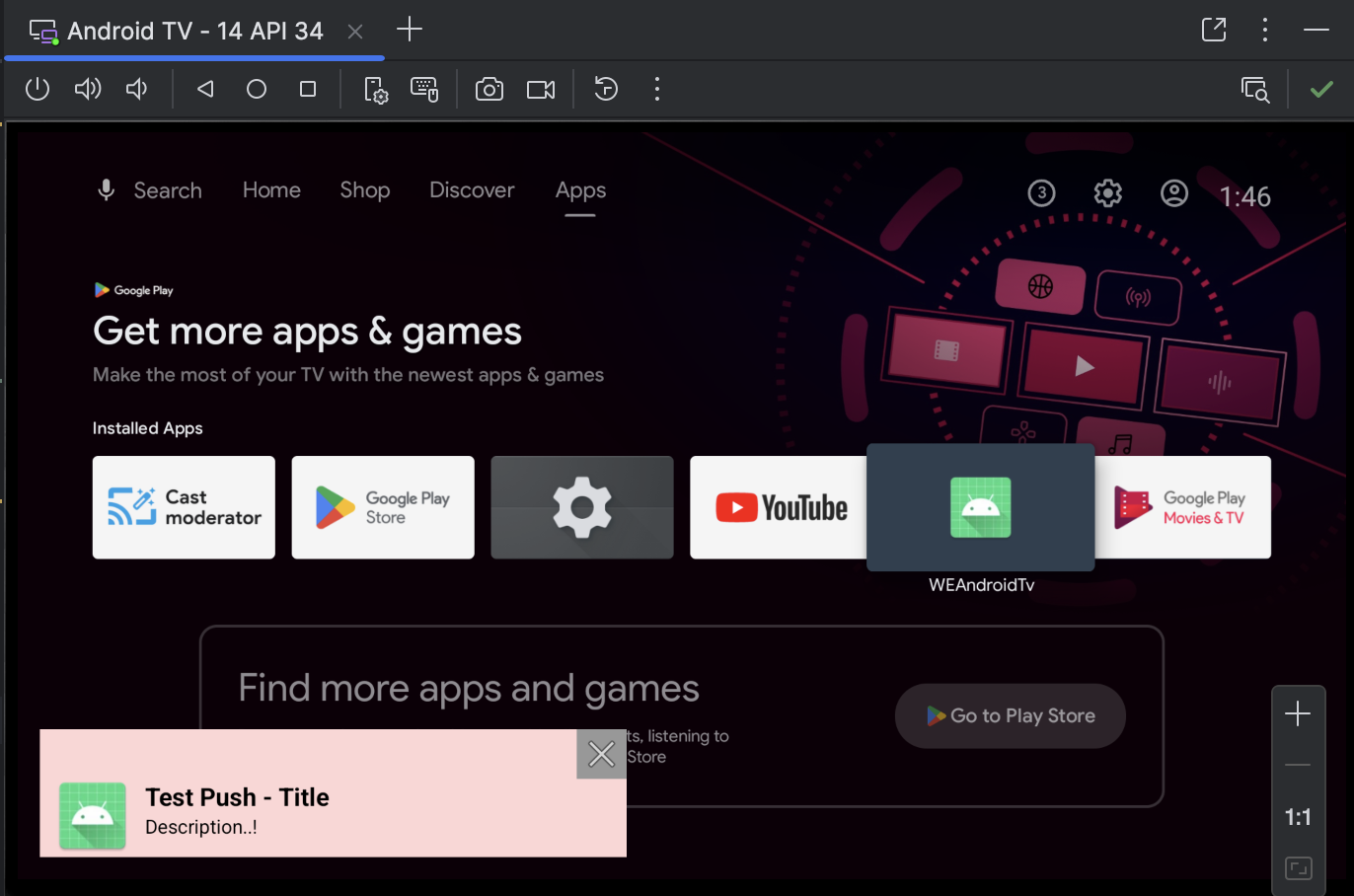
Sample custom Push Notification displayed using Overlay Permission.
To display floating notifications outside your application UI, add the following permission to your AndroidManifest.xml:
<uses-permission android:name="android.permission.SYSTEM_ALERT_WINDOW" />On Android 6.0 (API level 23) and above, users must manually grant Overlay Permission before your application can display floating views.
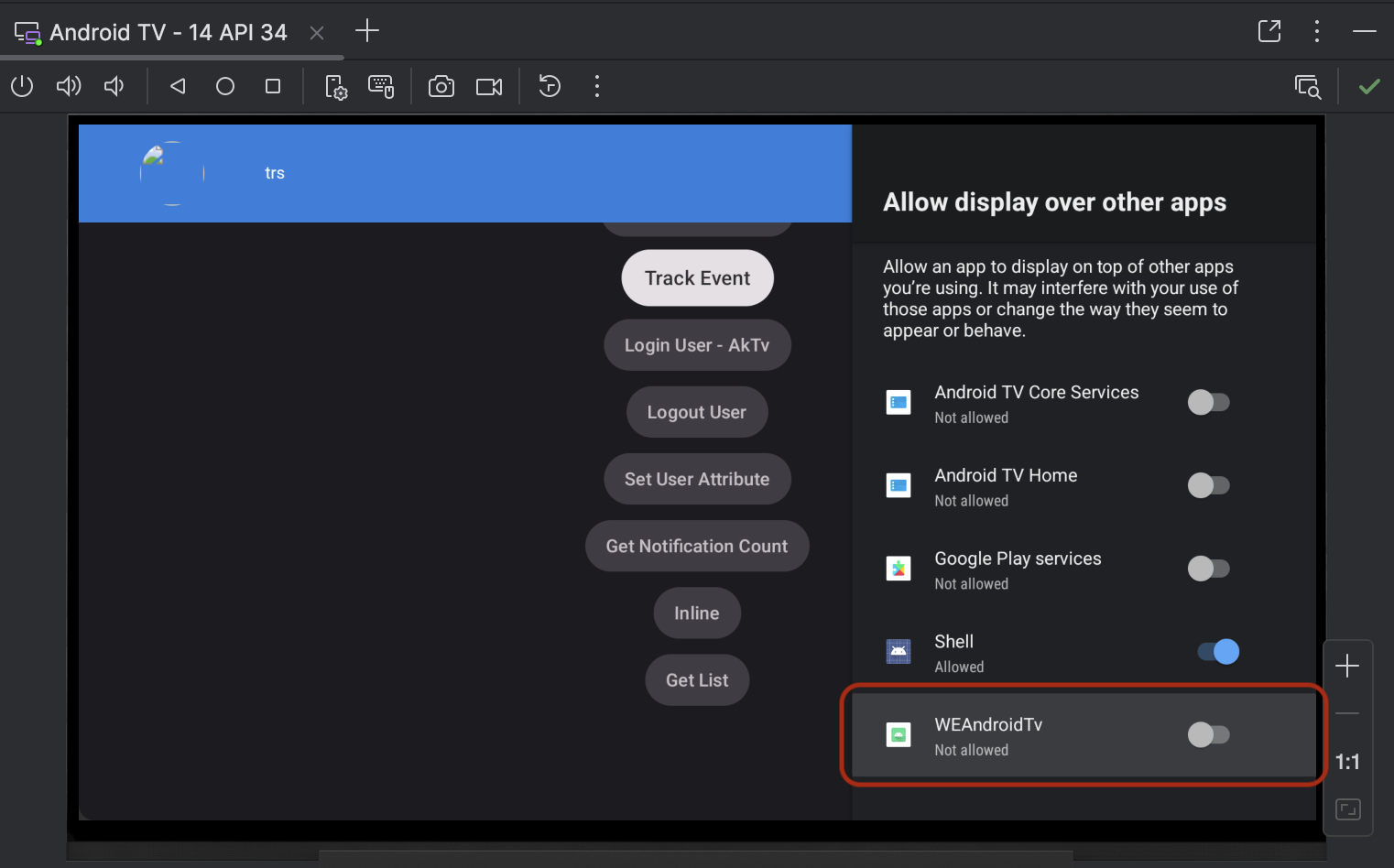
Android system settings screen requesting Overlay Permission.
Add a runtime permission check before rendering floating notifications.
If the user has not granted Overlay Permission:
- Open the system Overlay Permission screen.
- Display an in-app fallback notification until the user grants permission.
TV Push Rendering Example
Android TV Push Rendering Example is the sample Application for your refernce to build the appliation
Use the following sample application as a reference implementation for building Push Notification support on TV platforms:
The sample demonstrates:
- Receiving FCM payloads
- Parsing WebEngage Push data
- Rendering floating notifications
- Displaying fallback UI for TV environments
import android.app.Activity
import android.content.Intent
import android.net.Uri
import android.os.Build
import android.provider.Settings
import androidx.activity.result.ActivityResultLauncher
import androidx.activity.result.contract.ActivityResultContracts

class TvOverlayPermissionHelper(
    private val activity: Activity,
    private val onPermissionResult: (Boolean) -> Unit
) {

    private val overlayPermissionLauncher: ActivityResultLauncher<Intent> =
        activity.registerForActivityResult(
            ActivityResultContracts.StartActivityForResult()
        ) {
            onPermissionResult(canRenderFloatingNotification())
        }

    fun canRenderFloatingNotification(): Boolean {
        return Build.VERSION.SDK_INT < Build.VERSION_CODES.M ||
            Settings.canDrawOverlays(activity)
    }

    fun requestOverlayPermissionIfNeeded() {

        if (Build.VERSION.SDK_INT >= Build.VERSION_CODES.M &&
            !Settings.canDrawOverlays(activity)
        ) {

            val intent = Intent(
                Settings.ACTION_MANAGE_OVERLAY_PERMISSION,
                Uri.parse("package:${activity.packageName}")
            )

            overlayPermissionLauncher.launch(intent)

        } else {

            onPermissionResult(true)
        }
    }
}
import android.app.Activity;
import android.content.Intent;
import android.net.Uri;
import android.os.Build;
import android.provider.Settings;
import androidx.activity.result.ActivityResultLauncher;
import androidx.activity.result.contract.ActivityResultContracts;
public class TvOverlayPermissionHelper {
private final Activity activity;
private final OnPermissionResultListener onPermissionResult;
public interface OnPermissionResultListener {
void onResult(boolean granted);
}
private final ActivityResultLauncher<Intent> overlayPermissionLauncher;
public TvOverlayPermissionHelper(
Activity activity,
OnPermissionResultListener onPermissionResult
) {
this.activity = activity;
this.onPermissionResult = onPermissionResult;
overlayPermissionLauncher =
activity.registerForActivityResult(
new ActivityResultContracts.StartActivityForResult(),
result -> onPermissionResult.onResult(
canRenderFloatingNotification()
)
);
}
public boolean canRenderFloatingNotification() {
return Build.VERSION.SDK_INT < Build.VERSION_CODES.M
|| Settings.canDrawOverlays(activity);
}
public void requestOverlayPermissionIfNeeded() {
if (Build.VERSION.SDK_INT >= Build.VERSION_CODES.M
&& !Settings.canDrawOverlays(activity)) {
Intent intent = new Intent(
Settings.ACTION_MANAGE_OVERLAY_PERMISSION,
Uri.parse("package:" + activity.getPackageName())
);
overlayPermissionLauncher.launch(intent);
} else {
onPermissionResult.onResult(true);
}
}
}Fire TV Limitation
Fire TV devices run FireOS, which does not include Google Play Services. As a result, Fire TV devices cannot use Firebase Cloud Messaging (FCM).
As a result:
- Fire TV devices cannot generate FCM Tokens.
- WebEngage does not currently deliver Push Notifications to Fire TV devices.
- Analytics, In-App Messaging, Inline Content, and Notification Inbox continue to work normally.
For more information about the differences between Fire TV and Android TV development, refer to the following documentation.
Do not configure Firebase Messaging for Fire TV builds because Fire TV devices cannot generate FCM Tokens.
Error Handling
Handle the following failure scenarios explicitly in your TV integration:
| Failure Mode | Affected Platforms | Recovery |
|---|---|---|
| FCM delivers the payload, but no notification appears | Android TV, Google TV | Render the payload using a floating notification or in-app fallback because NotificationManager.notify() is not reliable on TV platforms. |
| User has not granted Overlay Permission | Android TV, Google TV | Prompt the user to open Overlay Permission settings. If the user declines permission, display a Toast or in-app fallback UI. |
| App runs on Fire TV without Google Play Services | Fire TV | Do not initialize FCM Push flows for this build. Keep Analytics, In-App Messaging, Notification Inbox, and Inline Content enabled. |
| App cannot attach the floating notification | Android TV, Google TV | Catch the failure, log diagnostic information, and display the message inside the active application UI. |
| In-App Messaging campaign does not render | All TV Platforms | Configure In-App Messaging campaigns in Landscape mode because portrait mode can cause rendering issues on TV platforms. |
Summary
- Use the standard Android SDK integration flow for TV platforms.
- Analytics, In-App Messaging, Inline Content, Notification Inbox, and User Tracking work normally on TV devices.
- Android TV and Google TV support FCM payload delivery, but require custom Push Notification rendering.
- Fire TV devices run FireOS without Google Play Services, so they cannot use FCM.
Updated 5 months ago