---
updatedAt: 2026-04-06T05:42:36.000Z
agentTools:
projectIndex: https://docs.webengage.com/llms.txt
---
# Shopify
WebEngage brings you the ability to integrate with one of the largest e-commerce platforms, *Shopify*, to your dashboard easily and that too without the hassle of writing any code. Our one-click *Shopify* plugin starts tracking data within seconds.
## Installation
{`
`}
* Make sure you are logged in to your Shopify store and have the access to install apps.
* From the [WebEngage listing page](https://apps.shopify.com/webengage) on the Shopify App Store, click the ‘Add App’ button to review the app’s permissions and then click on ‘Install App’.
* Once the app is installed, you will be redirected to a page where you have to select your data center, WebEngage account and identifier type. To avoid any data sanity issues, make sure that the same identifier type is selected if you're reinstalling the app on the same store.
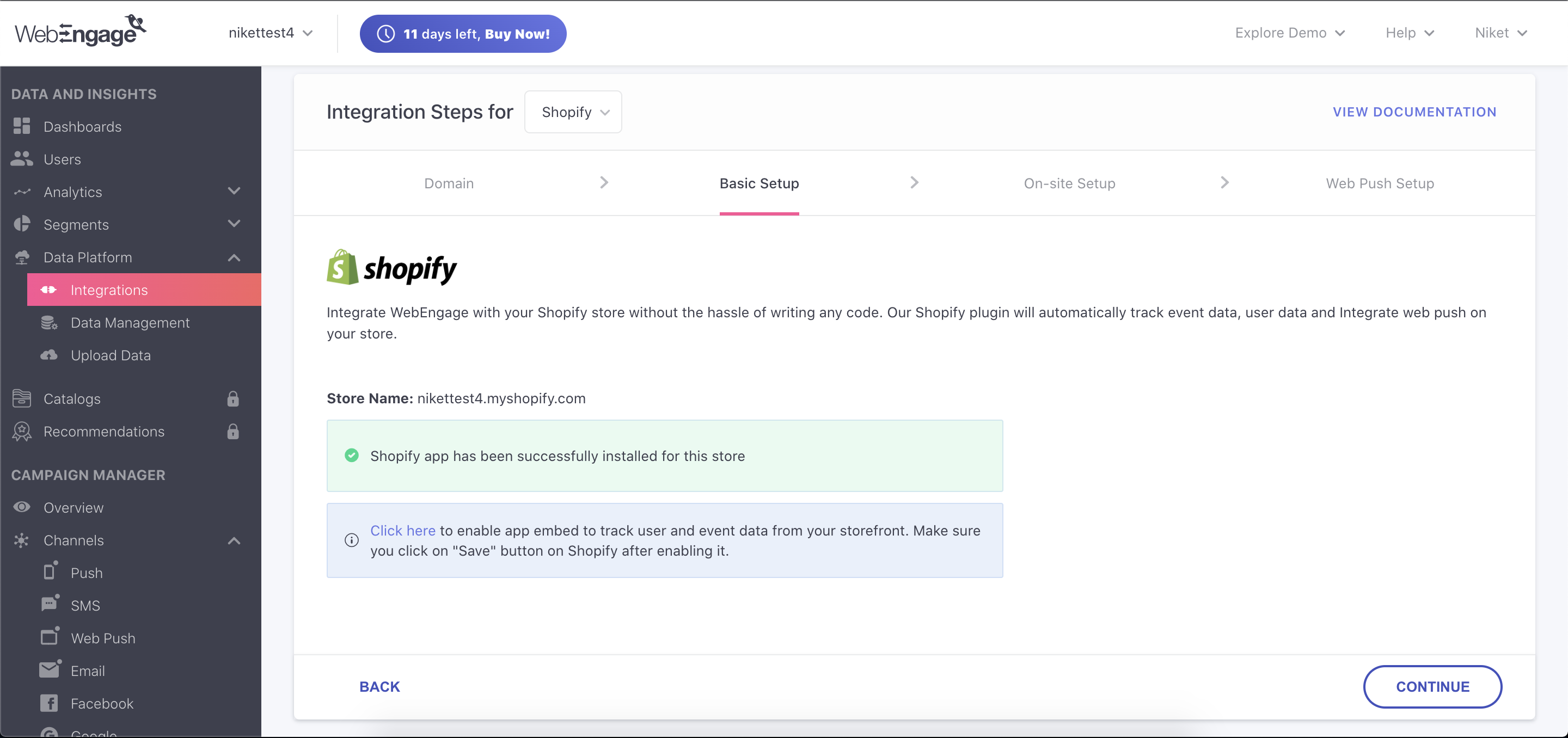
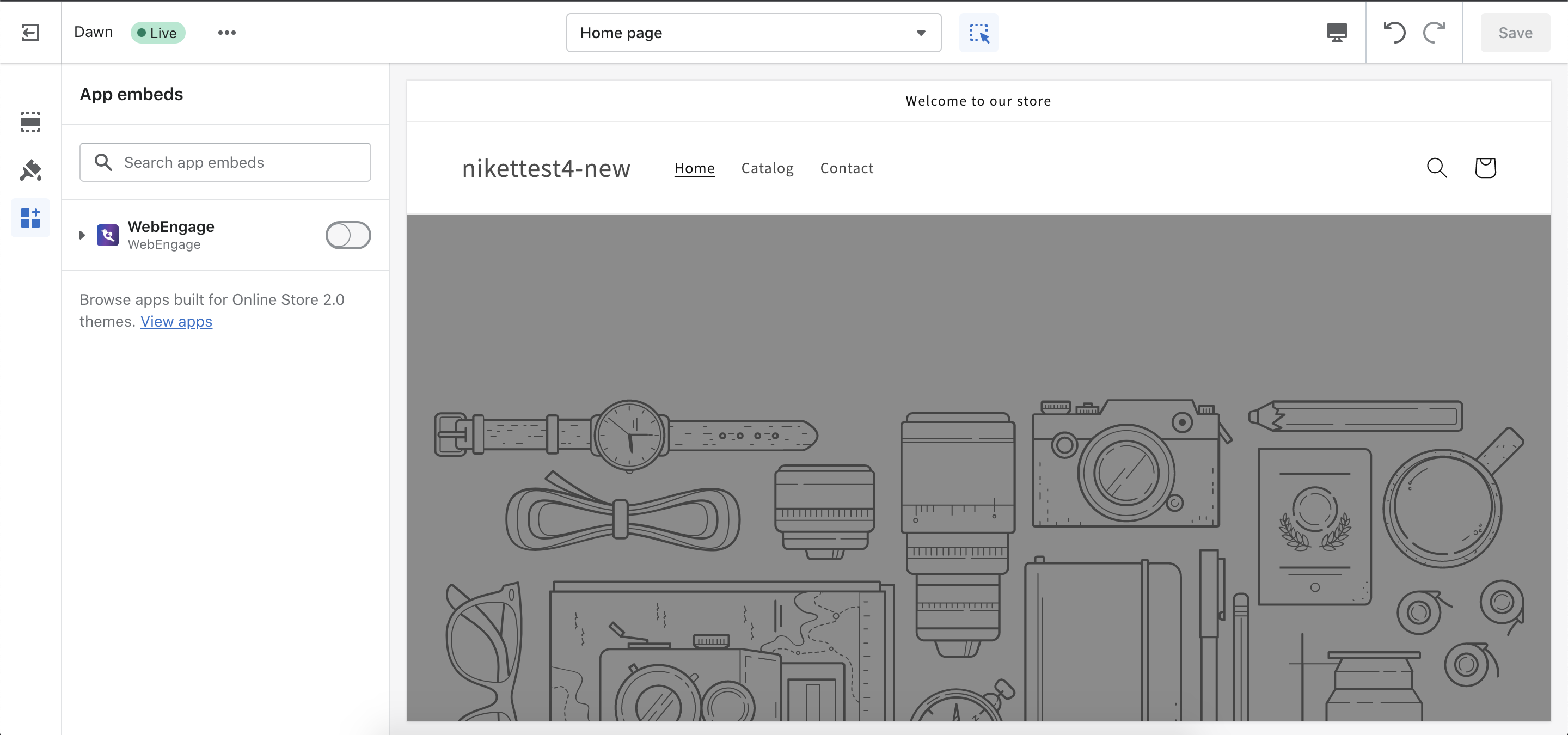
* You will then be redirected to the WebEngage dashboard where you will be given a link to enable “app embed” in your Shopify theme. This is a crucial step to get our SDK integrated on the website and start collecting user and event data.
| | |
| :-------------------------------------------------------------------------------------- | :-------------------------------------------------------------------------------------- |
|  |
 |
* (Option Step) If you wish to enable [1-step opt-in web push](https://docs.webengage.com/docs/web-push#2-select-opt-in-type) in your WebEngage project, you will have to set the service worker path to "/apps/webengage/service-worker".
That's it! User and event data from your Shopify store has now started flowing into your WebEngage project.
## List of tracked User Attributes
After successfully installing the *Shopify* plugin, the following user attributes will be tracked:\
`Email`, `Phone`, `Identity`, `Tags`, `City`, `Accepts Marketing`, `Has Account`, `Orders Count`, `Tax Exempt`, `Total Spent`, `customer_id`, `First Name`, `Last Name` , `customer_locale`.
## List of tracked Events
After successfully installing the *Shopify* plugin, WebEngage will start tracking the below-mentioned custom events and attributes attached to it.
### Product Viewed
Attributes: `ID`, `Price`, `Title`, `Currency`, `Available`, `Total Variants`, `Source`, `Tags`, `Image`, `Variant Id`
### Searched Product
Attributes: `Terms`, `Total Items`, `Source`.
### Category Viewed
Attributes: `ID`, `Title`, `Image`, `Product Count`, `Source`.
### Added to Cart
Attributes: `Title`, `Image`, `Vendor`, `Quantity`, `Product ID`, `Variant ID`, `Product Type`, `Variant Title`, `Currency`, `Price`, `Source`.
### Removed From Cart
Attributes: `Title`, `Image`, `Vendor`, `Quantity`, `Product ID`, `Variant ID`, `Product Type`, `Variant Title`, `Currency`, `Price`, `Source`.
### Customer Registered
Attributes: `Email`, `Phone`, `Identity`, `Tags`, `City`, `Accepts Marketing`, `Has Account`, `Tax Exempt`, `Customer ID`, `First Name`, `Last Name`.
### Checkout Button Clicked
### Checkout created
Attributes: `abandoned checkout url`, `cart token`, `currency`, `line_items`, `productIds`, `shipping address city`, `shipping address country`, `shipping address country_code`, `shipping address province`, `shipping address province code`, `subtotal price`, `total price`, `variantIds`
### Checkout updated
Attributes: `abandoned checkout url`, `billing address city`, `billing address country`, `billing address country_code`, `billing address province`, `billing address province code`, `billing address zip,` `buyer_accepts_marketing`, `cart token`, `Created At`, `currency,` `customer accepts marketing`, `default address city`, `default address country`, `default address country code`, `default address province,` `default address province code`, `default address zip`, `email`, `gateway`, `line_items`, `name`, `order id`, `orders count`, `productIds`, `source name`, `subtotal price`, `total price`, `total spent`, `Updated At`, `variantIds`
### Order created
`Title`, `Variant Title`, `Vendor`, `event map`, `shipping address map`, `billing address map`, `line_items`, `customer created at`, `customer updated at`, `order status url`, `cart token`, `Created At`, `Updated At`, `financial status`, `gateway`, `order number`, `current total price`, `current total discounts`, `name`, `tags`, `total price`, `subtotal price`, `productIds`, `variantIds`, `shipping address zip`, `product category`, `product type`, `collections` , `Coupon Code`
### Order Completed
Attributes: `Updated At`, `Created At`, `Updated At`, `Abandoned Checkout URL`, `Billing Address City`, `Billing Address Country`, `Billing Address Country Code`, `Billing Address Province`, `Billing Address Province Code`, `Billing Address Zip`, `Buyer_Accepts_Marketing`, `Currency`, `Customer Accepts Marketing`, `Customer Created At`, `Customer ID`, `Customer Locale`, `Customer Updated At`, `Default Address City`, `Default Address Country`, `Default Address Country Code`, `Default Address Province`, `Default Address Province Code`, `Default Address Zip`, `Device ID`, `Email`, `Gateway`, `Location ID`, `Name`, `Phone`, `Shipping Address City`, `Shipping Address Country`, `Shipping Address Country Code`, `Shipping Address Province`, `Shipping Address Province Code`, `Shipping Address Zip`, `Source`, `Source Name`, `Subtotal Price`, `Tags`, `Total Price`, `User ID`, `Cart Token`, `Checkout ID`, `Checkout Token`, `Financial Status`, `Gateway`, `Order Status URL`, `Order Number`, `Current Total Price`, `Current Total Tax`, `Current Total Discounts`, `Order ID`.
### Order updated
Same attributes as `Order Completed` event
### Order fulfilled
`Title`, `Vendor`, `Variant Title`, `productIds`, `variantIds` ,`fulfillment map`, `event map`, `shipping address map`, `billing address map`, `line_items`, `order status url`, `cart token`, `Created At `,`Updated At`, `financial status` ,`order number` ,`current total price` ,`current total discounts` ,`name` ,`tags`, `total price`, `subtotal price`, `shipping address zip`
### Order partially fulfilled
`Title`, `Vendor`, `Variant Title`, `productIds`, `variantIds` ,`fulfillment map`, `event map`, `shipping address map`, `billing address map`, `line_items`, `order status url`, `cart token`, `Created At `,`Updated At`, `financial status` ,`order number` ,`current total price` ,`current total discounts` ,`name` ,`tags`, `total price`, `subtotal price`, `shipping address zip`
### Order cancelled
`Title`,`Vendor`,`Variant Title`, `event map`, `shipping address map`, `billing address map`, `line_items`, `order status url`, `cart token`,`Created At`, `Updated At`, `financial status`, `order number`, `current total price`, `current total discounts`, `name`, `tags`, `total price`, `subtotal price` , `productIds`, `variantIds` ,`shipping address zip` `cancel reason`, `cancelled at`
### Newsletter Subscribed
Attributes: `contact[email]`, `contact[Message]`, `contact[Name]`, `contact[Phone Number]`, `contact[tags]`, `form_type`
### Cart Viewed
Attributes: `Number of Products`, `Product Name`, `Total`.
### Cart Updated
Attributes: `Number of Products`, `Product Name`, `Total`.
###
## How to track additional custom events
To tack additional custom events apart from those mentioned above, use the below script
```javascript
function webengageOnReady(cb) {
if (typeof webengage === undefined || typeof webengage.onReady !== "function") {
setTimeout(function() {
webengageOnReady(cb);
}, 100);
} else {
webengage.onReady(cb)
}
}
webengageOnReady(function(){
// paste event tracking function here
})
```
To configure event tracking function, refer this [documentation](https://docs.webengage.com/docs/web-tracking-events#tracking-custom-events)
> 📘 Call for feedback
>
> If you want our plugin to track some additional data or if you're facing any issues in using the plugin, please send an email to .